

Using VIZEN
Short answers for the things people ask most. The full guide is in the README on GitHub.
Your first overlay
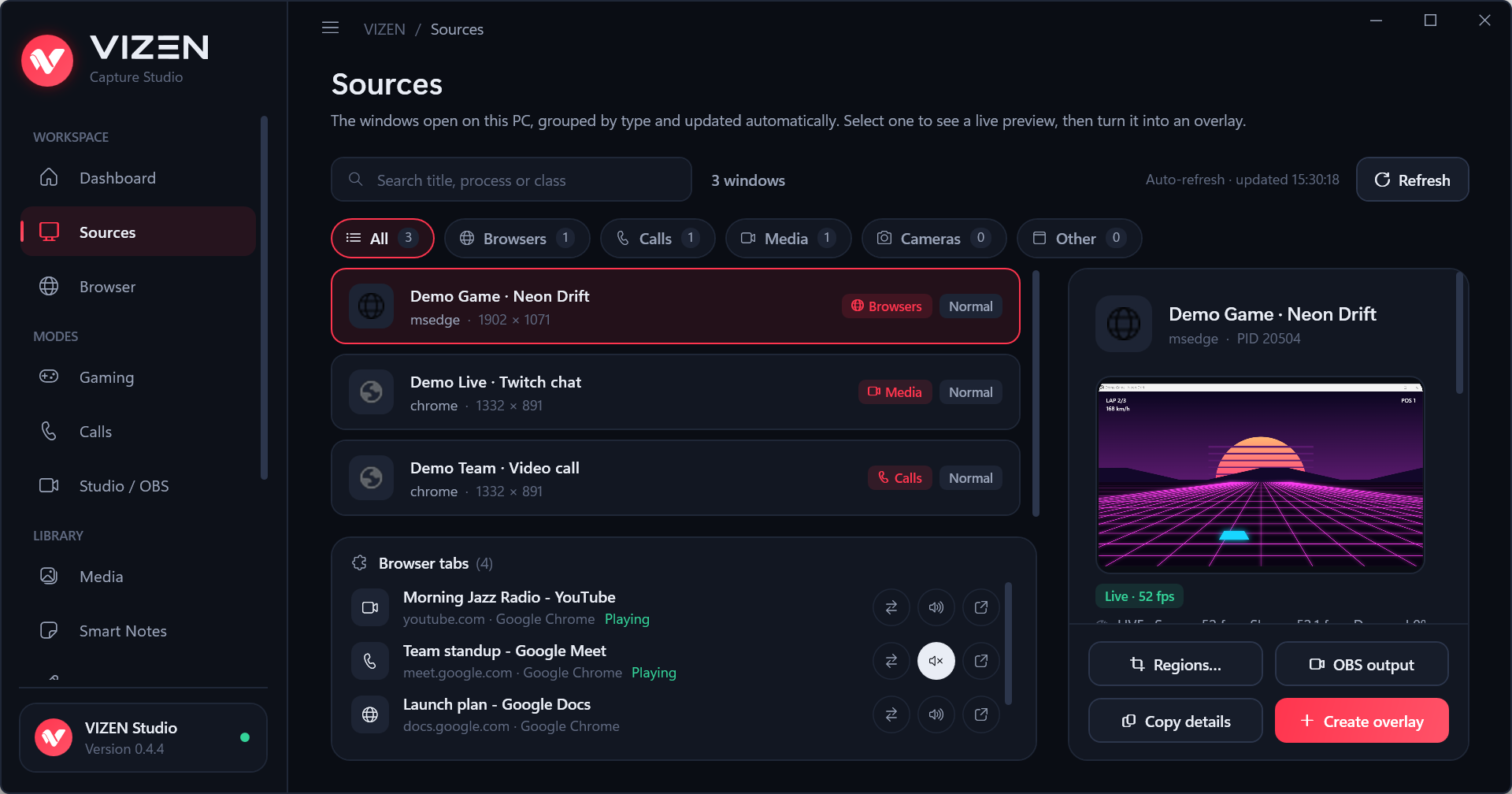
- Open the window you want to see over your game: a video call, a chat, a video, a web page.
- In VIZEN, open Sources and select that window. A live preview appears on the right.
- Press Create overlay. A live copy appears on top of everything.
- Drag it to move it, drag its edges to resize it, double-click it to remove black bars.
- Only need part of the window? Press Regions…, draw one or more rectangles and open each as its own overlay.
Games and borderless mode
Overlays appear over games that run windowed or borderless (also called "fullscreen windowed"). In the game's video or display settings, set the display mode to one of these.
Exclusive fullscreen draws directly to the screen, so no window can appear over it without injecting into the game, which VIZEN never does. VIZEN shows a hint when it detects exclusive fullscreen.
Press Ctrl+Shift+F9 to make overlays click-through (clicks go to the game) and Ctrl+Shift+F10 to hide or show them all.
Use it in OBS
- In VIZEN, select a source and press OBS output (or create one for a region in the region editor).
- In OBS, add a Window Capture source and pick
[VIZEN.App.exe]: VIZEN Output · …. - Set the capture method to Windows 10 (1903 and up).
Output windows show only the content, at an exact size, with an optional chroma-key background. Compositions (Studio / OBS) put several captures, logos, GIFs and videos into one window, so OBS needs a single source.
Video calls
Discord, Zoom, Teams, WhatsApp, Skype and browser calls (Google Meet, Messenger and others) appear under Calls. Press Mirror as overlay for the whole call, or Crop participants to draw one region per person and give each one an overlay or an OBS window. VIZEN does not find participants by itself: you choose the regions.
Browser tabs (VIZEN Connector)
- In VIZEN, open Browser and press Connect (once).
- Microsoft Edge: install VIZEN Connector from Edge Add-ons.
Chrome or Brave (until the Chrome Web Store listing is live): openchrome://extensions, turn on Developer mode, press Load unpacked and choose the folder VIZEN shows on its Browser page. - Within 30 seconds VIZEN shows "Connected" and lists every tab under Sources, where you can switch to a tab, mute it or move it to its own window.
Capture one tab alone: click the VIZEN icon in the browser and choose Mirror this tab live. A small window shows the tab even in the background; select it in Sources like any window. Press Keep live once so it keeps working while covered by other windows. Minimizing the mirror sends it behind the browser instead, because Windows cannot capture minimized windows.
Audio mixer
Smart Audio Mixer sets the volume of every app separately and saves mixes as profiles. Ctrl+Shift+F3 shows a small floating mixer on top of your game. Smart Audio Focus lowers the apps you choose (music, game) while your priority app (for example Discord) is heard, then brings them back. It reacts to how loud the sound is, not to words. Browsers have no volume per tab, so single tabs can be muted but not turned down.
Keyboard shortcuts
| Ctrl+Shift+F9 | Overlays: click-through on / off |
| Ctrl+Shift+F10 | Overlays: show / hide all |
| Ctrl+Shift+F11 | Smart Notes: show / hide |
| Ctrl+Shift+F8 | Smart Notes: edit mode on / off |
| Ctrl+Shift+F7 | Smart Draw: on / off |
| Ctrl+Shift+F6 | Smart Draw: draw / pass-through |
| Ctrl+Shift+F5 | Smart Draw: show / hide drawings |
| Ctrl+Shift+F4 | Smart Draw: clear drawings (press twice to confirm) |
| Ctrl+Shift+F3 | Floating audio mixer: show / hide |
All of them work while a game is in front and can be changed in Settings → Hotkeys.
Updates
Microsoft Store version: the Store updates it.
Installer version: VIZEN checks vizen.ro (and GitHub if the site cannot be reached), verifies the digital signature of the release information and the installer file, and installs only after you press Restart and install. Your settings, notes, drawings and profiles are kept. Settings → Updates also has Check for updates.
Fixing problems
An overlay is black or frozen
- The source window is minimized: Windows does not draw minimized windows. Restore it; it can stay behind other windows.
- The source is a Chrome or Edge window that is completely covered: browsers stop drawing covered windows. Use the extension's Mirror this tab live instead.
- The game runs in exclusive fullscreen: switch it to borderless.
- Still black on this PC: on the Performance page, turn off GPU rendering and open the overlay again.
Windows says "Windows protected your PC"
The installer is not code-signed yet. Choose More info → Run anyway, or install VIZEN from the Microsoft Store, which is signed by Microsoft.
The extension says "VIZEN not connected"
- Start VIZEN and press Connect on its Browser page.
- Wait 30 seconds or restart the browser.
- If you moved or reinstalled VIZEN, press Connect again.
A shortcut does nothing
Another program may use the same keys. Settings → Hotkeys shows each shortcut's status and lets you pick another combination.
The overlay drops frames
Open the Performance page: it measures every capture and Auto Performance names the likely cause (busy GPU, busy processor or a slow copy). Lowering the game's graphics settings, or allowing VIZEN to lower a struggling overlay to 30 fps, helps on integrated graphics.
Uninstalling
Remove VIZEN from Settings → Apps → Installed apps. Your settings stay in %LOCALAPPDATA%\VIZEN; delete that folder if you no longer need them. Remove the extension from your browser's extensions page.
Still stuck? Write to hi@vizen.ro or open an issue on GitHub.
Cum folosești VIZEN
Răspunsuri scurte la ce întreabă oamenii cel mai des. Ghidul complet e în README-ul de pe GitHub (în engleză).
Primul overlay
- Deschide fereastra pe care vrei s-o vezi peste joc: un apel video, un chat, un video, o pagină web.
- În VIZEN, deschide Surse și selectează fereastra. În dreapta apare o previzualizare live.
- Apasă Creează overlay. O copie live apare deasupra tuturor ferestrelor.
- O muți trăgând de ea, o redimensionezi din margini, iar dublu-click elimină benzile negre.
- Ai nevoie doar de o parte din fereastră? Apasă Regiuni…, desenează unul sau mai multe dreptunghiuri și deschide-le pe fiecare ca overlay separat.
Jocuri și modul fără margini
Overlay-urile apar peste jocurile care rulează în fereastră sau fără margini (numit și „fullscreen windowed” sau „borderless”). Alege unul dintre aceste moduri din setările video ale jocului.
Ecranul complet exclusiv desenează direct pe ecran, așa că nicio fereastră nu poate apărea peste el fără injecție în joc, pe care VIZEN nu o face niciodată. VIZEN te anunță când detectează acest mod.
Ctrl+Shift+F9 face overlay-urile transparente la click (clickurile ajung în joc), iar Ctrl+Shift+F10 le ascunde sau le afișează pe toate.
În OBS
- În VIZEN, selectează o sursă și apasă Ieșire OBS (sau creează una pentru o regiune, din editorul de regiuni).
- În OBS, adaugă o sursă Window Capture și alege
[VIZEN.App.exe]: VIZEN Output · …. - Setează metoda de captură la Windows 10 (1903 and up).
Ferestrele de ieșire arată doar conținutul, la o dimensiune exactă, cu fundal chroma-key opțional. Compozițiile (Studio / OBS) pun mai multe capturi, logo-uri, GIF-uri și video într-o singură fereastră, deci în OBS ai nevoie de o singură sursă.
Apeluri video
Apelurile din Discord, Zoom, Teams, WhatsApp, Skype și browser (Google Meet, Messenger și altele) apar la Apeluri. Apasă Oglindește ca overlay pentru tot apelul sau Decupează participanți ca să desenezi câte o regiune pentru fiecare persoană, cu overlay sau fereastră OBS separată. VIZEN nu găsește singur participanții: tu alegi regiunile.
Taburi din browser (VIZEN Connector)
- În VIZEN, deschide Browser și apasă Conectează (o singură dată).
- Microsoft Edge: instalează VIZEN Connector din Edge Add-ons.
Chrome sau Brave (până apare în Chrome Web Store): deschidechrome://extensions, pornește Modul dezvoltator, apasă Încarcă extensia neîmpachetată și alege folderul arătat de VIZEN pe pagina Browser. - În cel mult 30 de secunde VIZEN arată „Conectat” și listează fiecare tab la Surse, unde poți trece la un tab, îl poți pune pe mute sau îl poți muta într-o fereastră proprie.
Ca să capturezi un singur tab: apasă iconița VIZEN din browser și alege Oglindește live acest tab. O fereastră mică arată tabul chiar și în fundal; o selectezi la Surse ca pe orice fereastră. Apasă o dată Păstrează live, ca să meargă și când e acoperită de alte ferestre. Dacă o minimizezi, trece în spatele browserului, pentru că Windows nu poate captura ferestre minimizate.
Mixer audio
Smart Audio Mixer setează volumul fiecărei aplicații separat și salvează mixurile ca profiluri. Ctrl+Shift+F3 afișează un mixer mic, plutitor, peste joc. Smart Audio Focus coboară aplicațiile alese (muzica, jocul) cât timp se aude aplicația prioritară (de exemplu Discord), apoi le readuce. Reacționează la cât de tare e sunetul, nu la cuvinte. Browserele nu au volum pe tab, deci taburile pot fi puse pe mute, dar nu date mai încet.
Scurtături de tastatură
| Ctrl+Shift+F9 | Overlay-uri: click-through pornit / oprit |
| Ctrl+Shift+F10 | Overlay-uri: afișează / ascunde toate |
| Ctrl+Shift+F11 | Smart Notes: afișează / ascunde |
| Ctrl+Shift+F8 | Smart Notes: mod editare pornit / oprit |
| Ctrl+Shift+F7 | Smart Draw: pornit / oprit |
| Ctrl+Shift+F6 | Smart Draw: desen / clickuri prin desen |
| Ctrl+Shift+F5 | Smart Draw: afișează / ascunde desenele |
| Ctrl+Shift+F4 | Smart Draw: șterge desenele (apasă de două ori ca să confirmi) |
| Ctrl+Shift+F3 | Mixer audio plutitor: afișează / ascunde |
Toate merg și când jocul e în față și se pot schimba din Setări → Scurtături.
Actualizări
Versiunea din Microsoft Store: o actualizează Store-ul.
Versiunea cu installer: VIZEN verifică vizen.ro (și GitHub, dacă site-ul nu răspunde), verifică semnătura digitală a informațiilor despre versiune și fișierul installerului și instalează doar după ce apeși Repornește și instalează. Setările, notițele, desenele și profilurile se păstrează. Din Setări → Actualizări poți și căuta actualizări manual.
Probleme și soluții
Un overlay e negru sau înghețat
- Fereastra sursă e minimizată: Windows nu desenează ferestrele minimizate. Restaureaz-o; poate rămâne în spatele altor ferestre.
- Sursa e o fereastră Chrome sau Edge acoperită complet: browserele nu mai desenează ferestrele acoperite. Folosește în schimb Oglindește live acest tab din extensie.
- Jocul rulează în ecran complet exclusiv: trece-l pe fără margini.
- Tot negru pe acest PC: pe pagina Performanță, oprește Randare pe GPU și deschide din nou overlay-ul.
Windows spune „Windows a protejat PC-ul”
Installerul nu are încă semnătură digitală. Alege Mai multe informații → Rulează oricum sau instalează VIZEN din Microsoft Store, unde e semnat de Microsoft.
Extensia spune „VIZEN nu e conectat”
- Pornește VIZEN și apasă Conectează pe pagina Browser.
- Așteaptă 30 de secunde sau repornește browserul.
- Dacă ai mutat sau reinstalat VIZEN, apasă din nou Conectează.
O scurtătură nu face nimic
Poate altă aplicație folosește aceleași taste. Setări → Scurtături arată starea fiecărei scurtături și te lasă să alegi altă combinație.
Overlay-ul pierde cadre
Deschide pagina Performanță: măsoară fiecare captură, iar Auto Performance spune cauza probabilă (placa video ocupată, procesorul ocupat sau o copiere lentă). Pe plăcile video integrate ajută setări grafice mai mici în joc sau permisiunea ca VIZEN să coboare un overlay la 30 fps.
Dezinstalare
Elimină VIZEN din Setări → Aplicații → Aplicații instalate. Setările rămân în %LOCALAPPDATA%\VIZEN; șterge folderul dacă nu mai ai nevoie de ele. Extensia o elimini din pagina de extensii a browserului.
Tot nu merge? Scrie-ne la hi@vizen.ro sau deschide o problemă pe GitHub.